
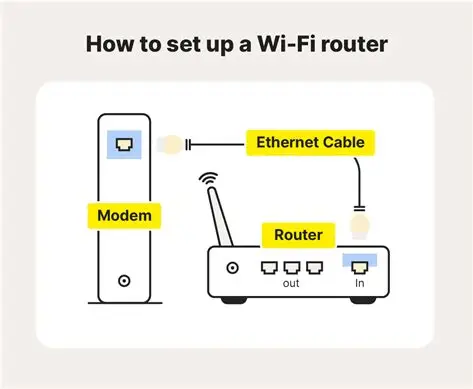
A home Wi-Fi network should be both reliable and properly secured. An unsecured or poorly configured router can expose connected devices to unnecessary risks, while a badly positioned router can result in weak signals and frustrating connection speeds.
Fortunately, you can improve both the security and performance of your home Wi-Fi network with a few basic changes.
Put Your Router in the Right Location
Start by moving your Wi-Fi router to a central, open location in your house rather than placing it in a corner, behind furniture, or inside a cabinet.
A central position allows the wireless signal to travel more evenly to your devices and reduces the number of obstacles it has to pass through.
Walls, floors, large appliances, and other objects can weaken Wi-Fi signals. Keeping the router elevated and away from major obstructions can therefore improve coverage.
Log Into Your Router
To change the router’s settings, open a web browser on a device connected to your network and enter the router’s local IP address.
Common router addresses include 192.168.1.1 and 192.168.0.1, although the correct address depends on your router and network configuration.
You will then need to enter the administrator username and password. Some routers have the original login details printed on a sticker, while newer models may require you to create the administrator password during setup.
Change the Default Administrator Password
One of the first security steps you should take is changing the router’s default administrator password.
Leaving default credentials unchanged can make it easier for someone with access to the network or router interface to alter important settings.
Create a strong, unique administrator password that you do not reuse on other websites or services.
Change Your Wi-Fi Name and Password
While you’re in the router’s settings, consider changing the default Wi-Fi network name, also known as the SSID.
Avoid using personal information such as your full name, home address, or other details that could reveal exactly who owns the network.
Your Wi-Fi password should also be long and difficult to guess. Avoid common words, birthdays, phone numbers, and simple combinations.
If your router supports WPA3 encryption, use it where compatible. If WPA3 isn’t available, WPA2 is generally preferable to older standards. WEP should not be used, as it is outdated and insecure.
Enable the Router Firewall and Guest Network
Some routers include a built-in firewall. If yours has one, make sure it is enabled unless you have a specific reason to configure it differently.
A guest network can also be useful if your router supports it. Instead of giving visitors the same Wi-Fi credentials used by your personal devices, you can provide them with access to a separate guest network.
This can help keep your primary network and connected devices separated from guest devices.
Keep Your Router Updated
Finally, check the router manufacturer’s website or the router’s administration interface periodically for firmware updates.
Manufacturers sometimes release firmware updates that improve performance, add features, and fix known security vulnerabilities.
Keeping your router updated, using strong passwords, and choosing modern Wi-Fi security settings can go a long way toward creating a safer and more reliable home network.