
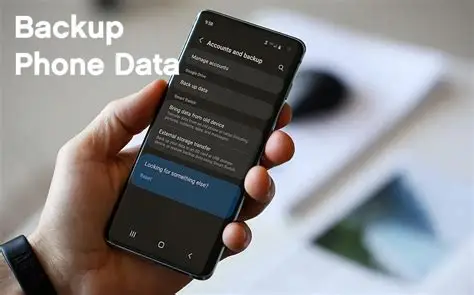
Your phone can contain years of photos, videos, contacts, messages, documents, and other important information. Losing a phone, damaging it, or performing a factory reset without a proper backup can therefore result in permanent data loss.
Setting up automatic backups is one of the easiest ways to protect your information before something goes wrong.
Back Up an Android Phone
On Android, open Settings and look for the backup section. Depending on the phone manufacturer and Android version, the exact menu names may be different.
Make sure the available Google backup options are enabled and that your important information is being backed up to your Google account.
Android backup can cover certain device data, settings, contacts, and other supported information, although exactly what is included depends on your phone, Android version, apps, and account settings.
You should therefore check the backup details rather than assuming that every file on your phone is automatically protected.
Back Up an iPhone
On an iPhone, go to Settings, tap your name, then select iCloud and iCloud Backup.
Turn on automatic iCloud backups and make sure the device has enough available iCloud storage for the data you want to protect.
You can also create a local backup using a computer. Depending on the computer and software you’re using, this can be done through Finder on a Mac or the appropriate Apple device-management software on Windows.
Back Up Photos and Videos
Photos and videos are among the files people are most likely to regret losing.
Services such as Google Photos and iCloud Photos can provide cloud-based storage and synchronization, depending on your settings and available storage.
Google Photos, for example, can automatically upload photos and videos when backup is enabled. However, cloud storage is subject to the service’s current storage limits and account settings, so don’t assume that unlimited storage is automatically available.
You can also copy important photos and videos to a computer or external storage for an additional backup.
Check That Your Backup Actually Worked
Before updating your phone, replacing it, or performing a factory reset, confirm that your backup completed successfully.
Check the last backup date in your phone’s settings and make sure it is recent.
This is particularly important before a factory reset. A backup that failed, is incomplete, or is much older than expected may leave you without the information you thought you had saved.
Keep More Than One Copy of Important Files
For extremely important documents, family photos, work files, and other irreplaceable information, consider keeping more than one copy.
For example, you could keep one copy in cloud storage and another on an external drive.
A good backup system should not depend on a single device. If your phone is lost or damaged, having another copy elsewhere can make recovery much easier.
Taking a few minutes to configure automatic backups now can save you significant stress later, especially when replacing a phone, installing a major update, or recovering from accidental deletion.